Fathom Integration
Overview
Alfred for Fathom
Alfred extends its capabilities with Fathom integration via Zapier. This powerful combination automatically summarizes your meeting transcriptions and delivers weekly insights, so you can focus on what matters most.
With Fathom, Alfred helps you:
- Summarize Meeting Transcriptions: Automatically condense detailed meeting recordings into concise summaries.
- Gain Weekly Insights: Receive comprehensive weekly reports highlighting key trends, decisions, and follow-up actions.
- Streamline Your Workflow: Connect Fathom to Alfred easily via Zapier to empower your meetings with actionable data.
Key Features
- Meeting Summaries: Generate accurate, succinct summaries from your meeting transcriptions.
- Weekly Analytics: Get a detailed overview of meeting performance, emerging trends, and critical takeaways every week.
- Effortless Zapier Integration: Seamlessly integrate Fathom with Alfred by cloning our pre-built Zap template.
- Actionable Insights: Use data-driven meeting reports to enhance decision-making and project outcomes.
Permissions & Use Cases
To set up the Fathom integration, you'll need to:
Fathom API Key
- API Key Generation: Obtain your Fathom API key during onboarding or via our Tools Dashboard.
- Authentication via Zapier: Clone our Zap template and authenticate Alfred with your Fathom API key.
Meeting Transcription Analysis
- Transcription Summarization: Allow Alfred to process and summarize your meeting transcriptions.
- Weekly Reporting: Enable Alfred to compile weekly insights on meeting trends, highlight action items, and track key decisions.
Installation & Setup
-
Generate Your API Key:
During onboarding or by visiting the Tools Dashboard, generate your Fathom API key. -
Clone the Zap Template:
Access our pre-built Zapier template designed to connect Fathom with Alfred effortlessly. -
Authenticate the Integration:
Use your Fathom API key to authorize the Zap template, linking your Fathom account with Alfred. -
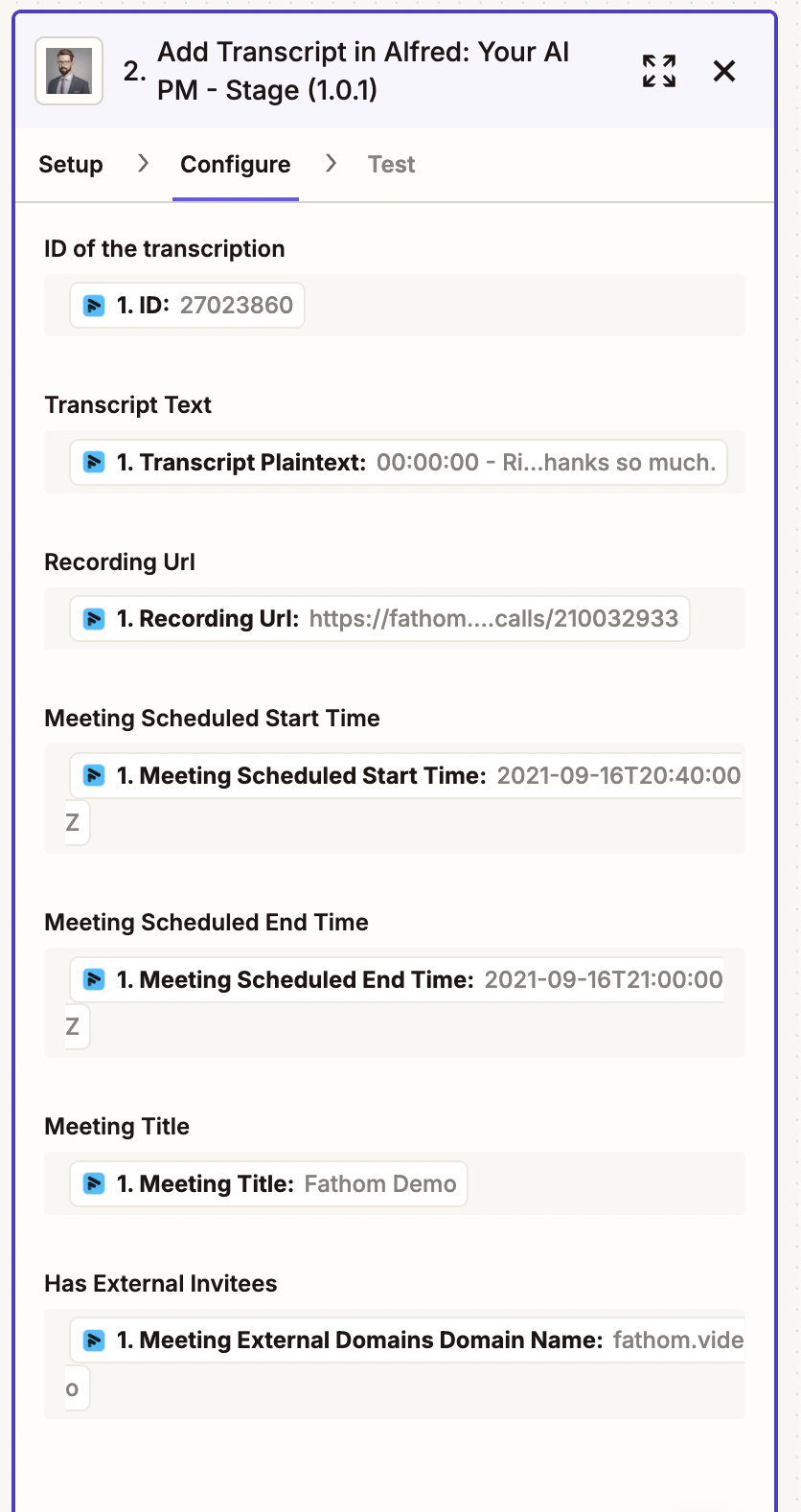
Configure Transcript Fields:
Map the following Fathom fields to Alfred's required fields in Zapier:- ID of the transcription
- Transcript Text
- Recording URL
- Meeting Scheduled Start Time
- Meeting Scheduled End Time
- Meeting Title
- Meeting External Domains Domain Name
-
Review Your Insights:
Once connected, Alfred will process your meeting transcriptions and deliver weekly insights directly to your dashboard.
Field Mapping Guide
When setting up your Zap, ensure proper field mapping between Fathom and Alfred:
Required Fields
- Transcription ID: Map to Fathom's unique transcript identifier
- Transcript Text: Connect to Fathom's transcript plaintext content
- Recording URL: Link to Fathom's recording URL
- Meeting Times: Map both scheduled start and end times
- Meeting Title: Connect to Fathom's meeting title field
- External Domains: Map to Fathom's external invitee domain information
This mapping ensures Alfred's conversation analysis engine properly processes your meeting transcripts.
Need Help?
For support or further questions about the Fathom integration, please contact our team at support@alfred.sh.
🚀 Enhance Your Meetings with Fathom and Alfred – Get Started Today!
Integration with Transcriber and Fathom
This document outlines the steps required to connect to Transcriber, select Fathom as the processing service, generate an API key, and finally create a Zap in Zapier. It also explains how the fields are mapped between Transcriber and Fathom.
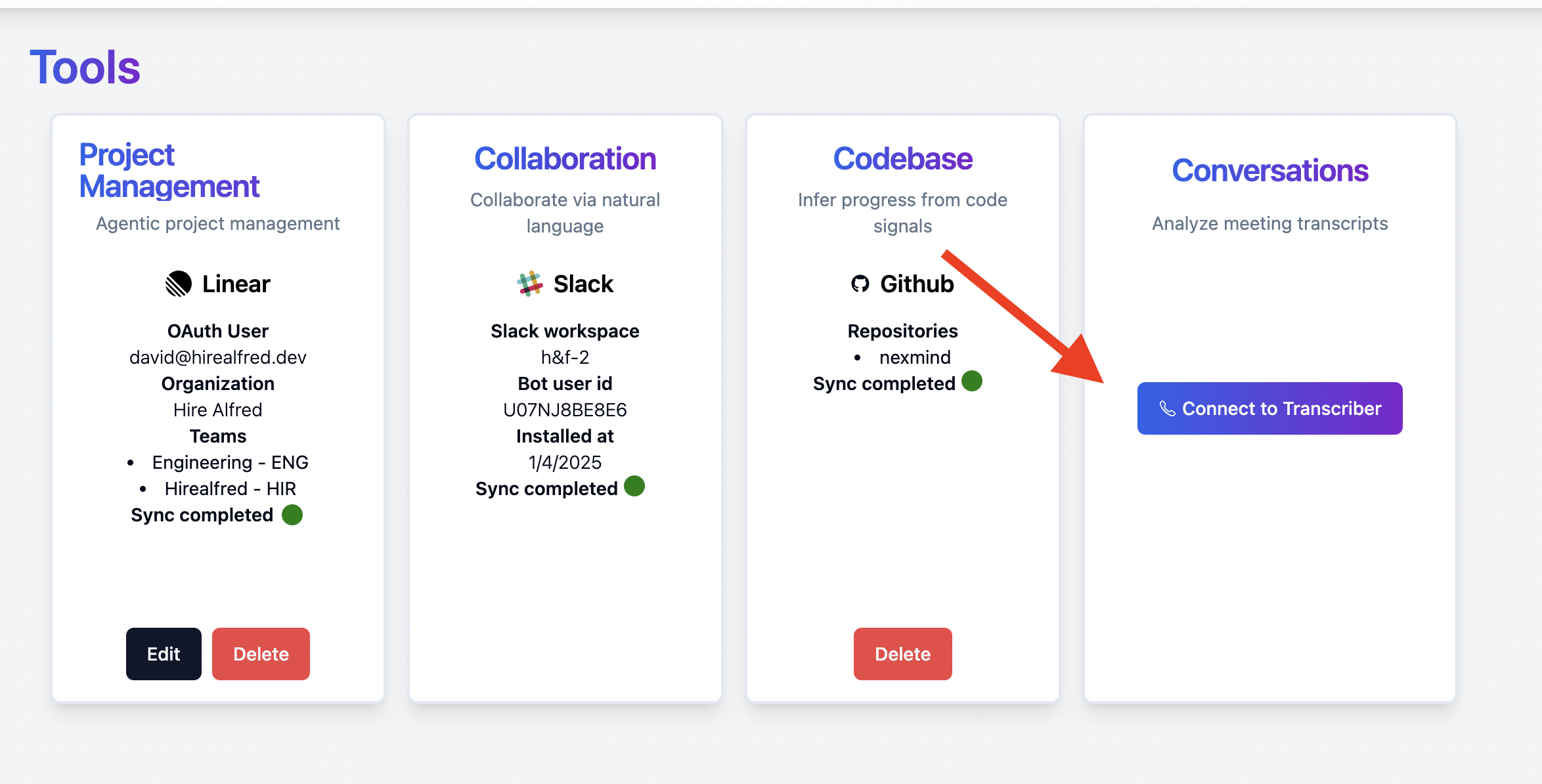
Step 1: Connect to Transcriber
- Click on "Connect to Transcriber"
This action initiates the connection process with Transcriber. - Reference Image:
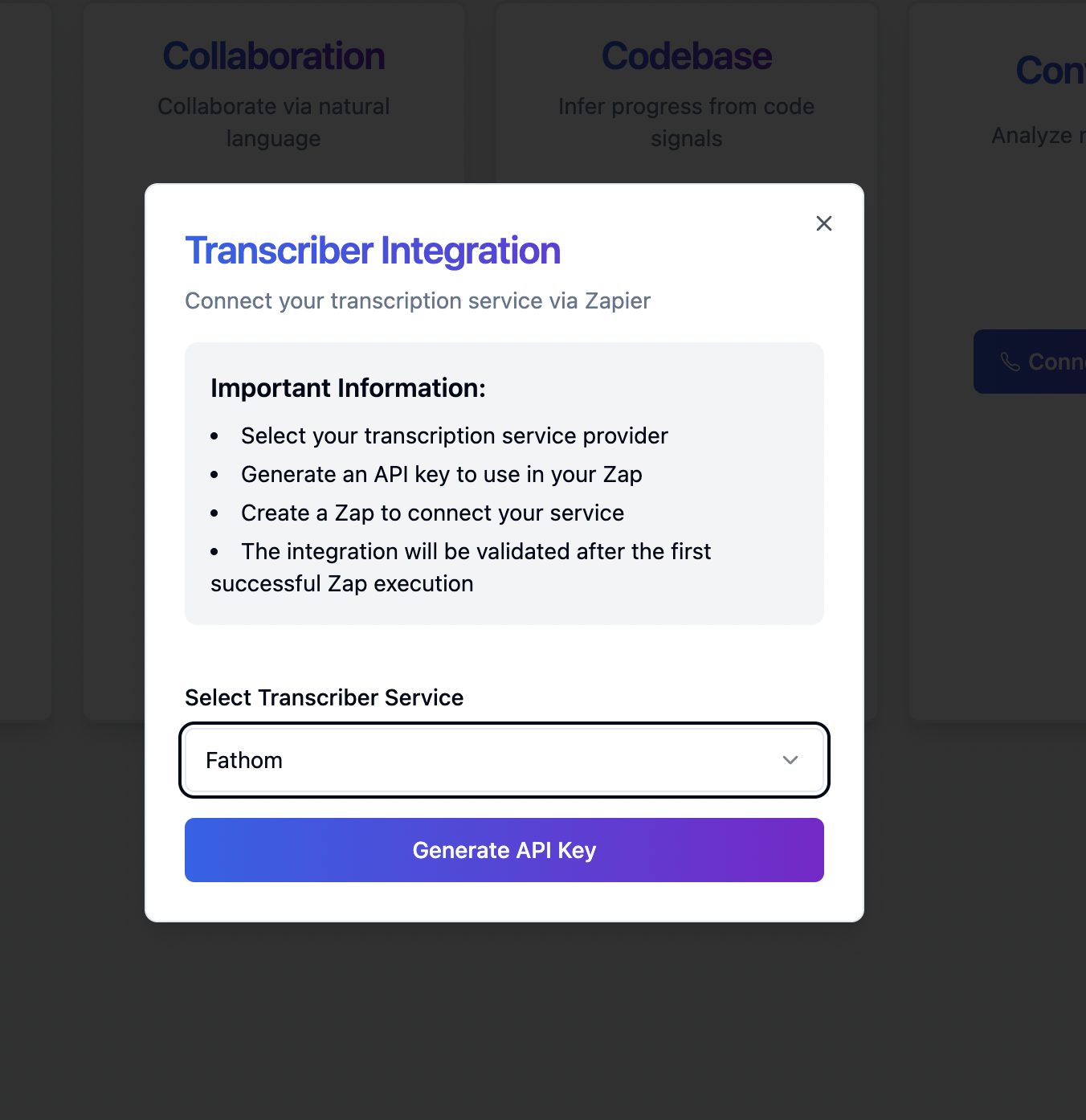
Step 2: Select the Service
- Select "Fathom"
Currently, Fathom is the only service available. Selecting it will configure the integration. - Reference Image:
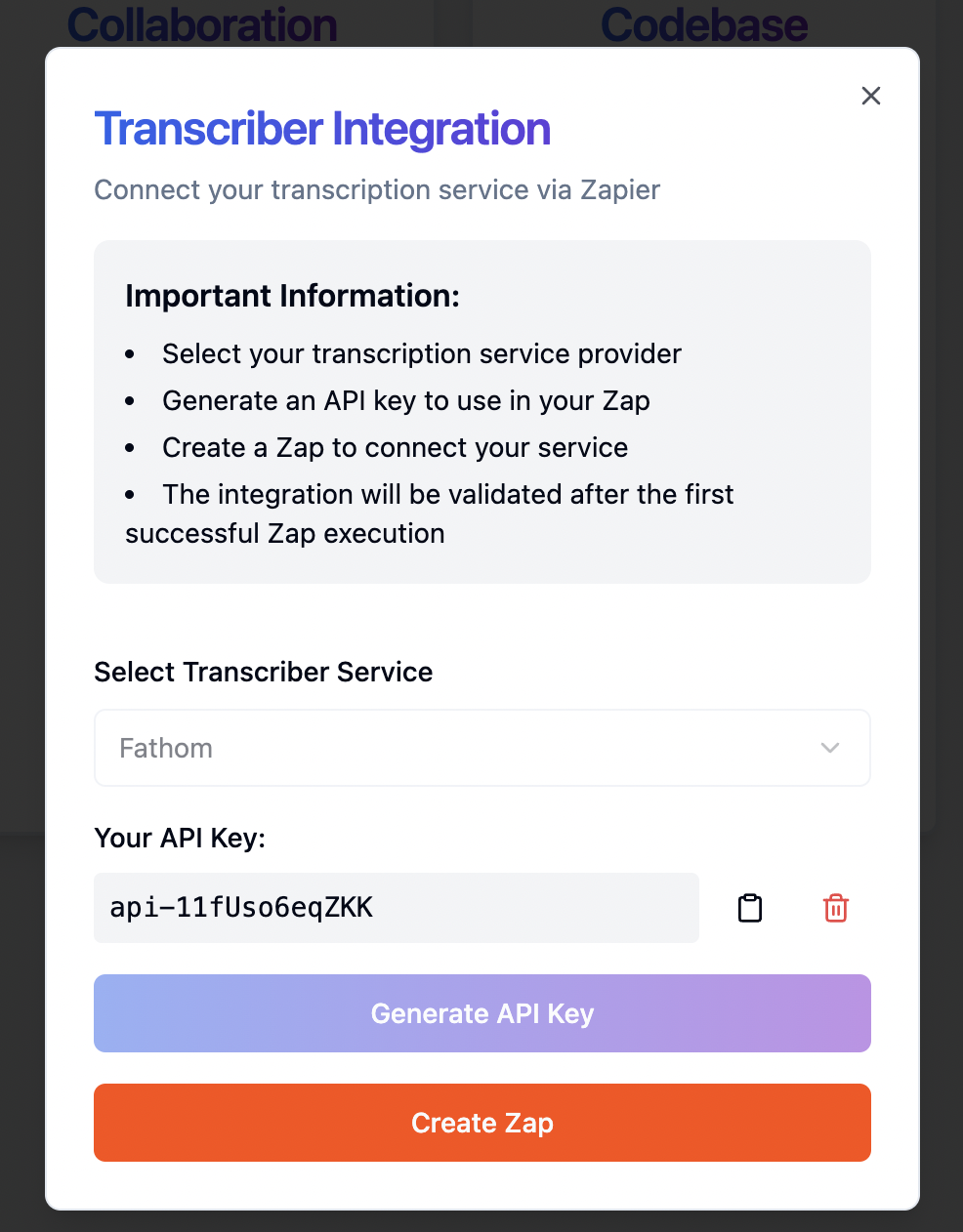
Step 3: Generate API Key and Create a Zap
- Copy the Generated API Key
After selecting Fathom, an API key is automatically generated. Copy this key as it will be needed to authenticate your Zap. - Create a Zap on Zapier
Navigate to the following URL to create your Zap:
Create a Zap on Zapier - Reference Image:
Field Mapping Explanation
The integration involves mapping specific fields from the Transcriber output to the corresponding fields within the Fathom service in your Zap. The mapping ensures that the proper data is passed between applications for seamless automation.
-
Transcription:
The transcribed text from Transcriber is sent into the Fathom workflow. This field is mapped to the text input field in Fathom. -
Timestamp:
The time of transcription is captured to help correlate data chronologically. -
User/Session Information:
Details that can link the transcription to a specific user or session are also mapped accordingly. -
API Key:
The generated API key is used to authenticate and securely link Transcriber with Fathom.
For a visual overview of these mappings, please refer to the image below:
Note: Ensure that these mappings correspond to your actual integration needs. Adjust the field connections as necessary so that data flows correctly between Transcriber and Fathom via Zapier.